
On November 10, 2026, OpenAI opened a beta called Businesses in ChatGPT. It works a lot like Google Business Profile did for Google search: a business can claim its listing inside ChatGPT, keep its details current, and see how often ChatGPT mentions it.
Patients already ask ChatGPT which practice to see. This is the first time a practice can control the basic facts ChatGPT has about it. We walked through the full setup on our own business so you can see every screen before you start.
What Is a ChatGPT Business Profile?
Business profiles live in a new area called Business Hub at chatgpt.com/business-hub. Once you claim and verify your business there, you can:
- Keep your details current: website, business description, category, logo, cover photo and contact information.
- See insights: mentions in ChatGPT answers, website clicks and the common topics in answers that mentioned you, over the past 28 days.
- Get a verified badge: a blue check appears on the profile after your identity verification is approved.
- Optionally publish a business agent: a chat assistant that answers questions about your products and policies. At launch this is limited to eligible US ecommerce and online service businesses, so most local medical practices will not see it yet.
Two things it does not do, in OpenAI's own words: claiming a profile does not guarantee more visibility in ChatGPT, and advertising does not influence ChatGPT's independent answers. Think of the profile as making sure the facts are right, not as a ranking lever. The work that earns recommendations (clear service pages, named physicians, reviews, third-party mentions) still matters, and we cover it in how to get your practice cited in ChatGPT and Perplexity.
What Do You Need Before You Claim Your ChatGPT Business Profile?
- A ChatGPT account. You do not need ChatGPT Enterprise or an ads account. Use an account the practice will keep, because the person who claims the business becomes its admin.
- Authority to represent the practice. The owner or someone authorized by the owner.
- One way to prove you control the business. ChatGPT offers the methods that fit your listing: a code sent to the business phone (text or automated call), a code sent to the business email, a DNS record on your website's domain, or a Shopify connection.
- A government-issued ID for the identity check through Persona, OpenAI's verification vendor. You may also be asked for business registration details. Make sure the business name and address match your official records.
- About 15 minutes, plus OpenAI's review time.
Physical practice vs. online business. OpenAI treats a practice patients visit in person as a local business. Local businesses can currently claim only an existing US listing; they cannot create a new one. Online businesses (telehealth-only practices, for example) can create a profile if none exists. When we tested creating a new in-person listing, ChatGPT put it on a waitlist (Step 3 shows the screen). The walkthrough below follows the online path, which we completed for Practice Growth Co. If you see your practice in the search results, the claim flow is the same idea: select the listing, confirm your account, verify.
How to Claim Your ChatGPT Business Profile, Step by Step
Step 1: Open Business Hub
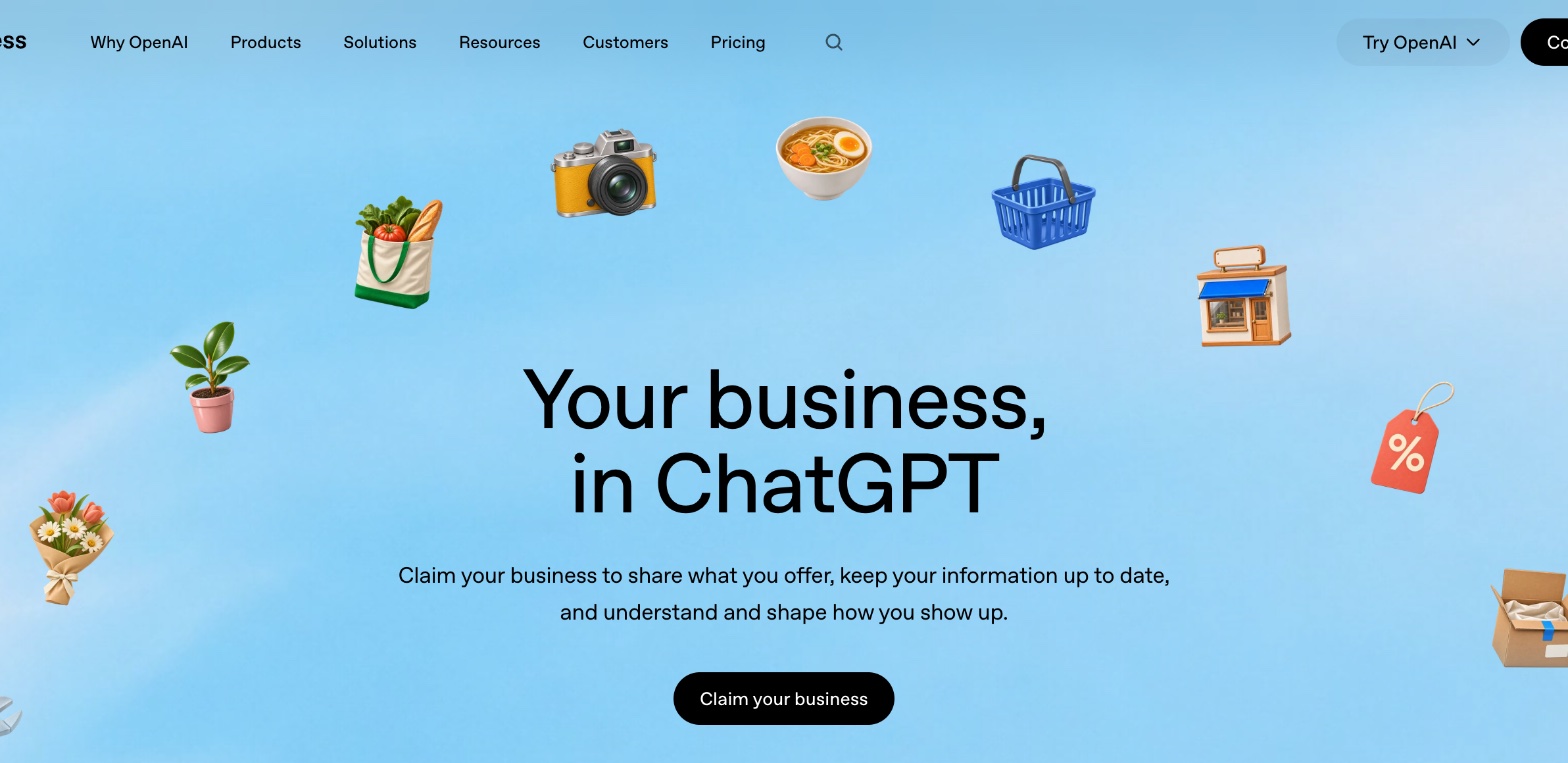
Sign in to ChatGPT, then go to chatgpt.com/business-hub. You can also start from OpenAI's Businesses in ChatGPT page and click Claim your business.
Step 2: Search for your practice
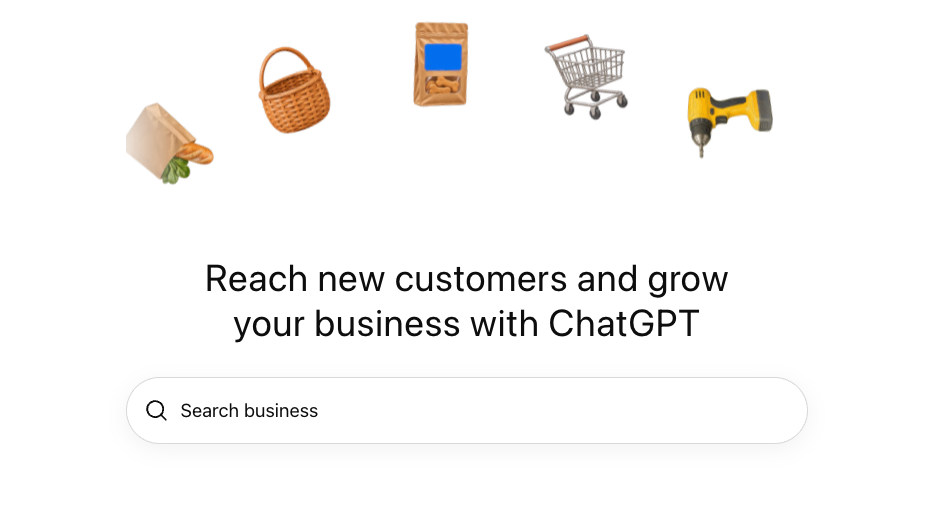
Type your practice name into Search business.
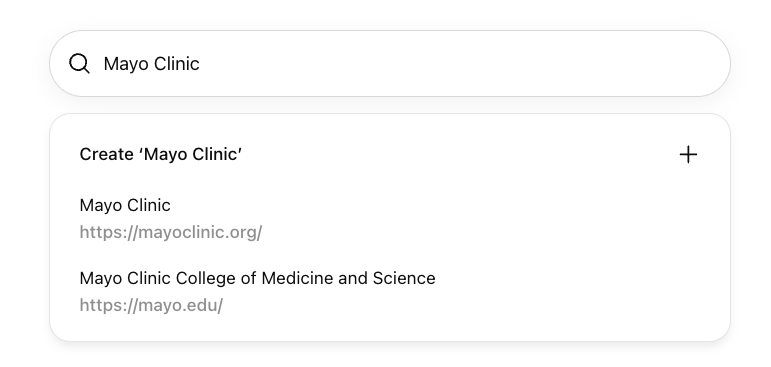
If ChatGPT already has a listing for you, it appears in the results with its website underneath. Select the one that matches your practice and follow the prompts to verify.
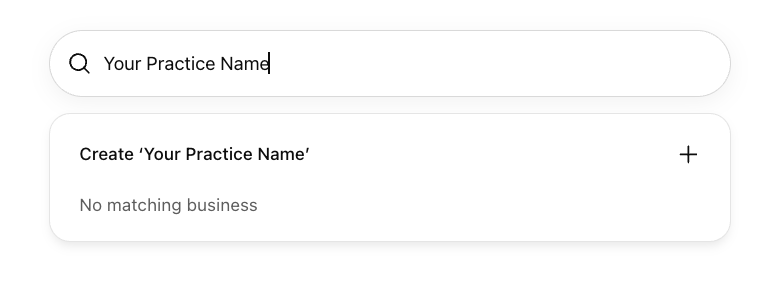
If there is no match, you will see No matching business and a Create option.
Step 3: Choose how patients reach you
Click Create (the first time, an intro screen appears; click Get started). ChatGPT asks how customers usually interact with your business: At a physical location if patients come to your office, or Through a website if you are online only.
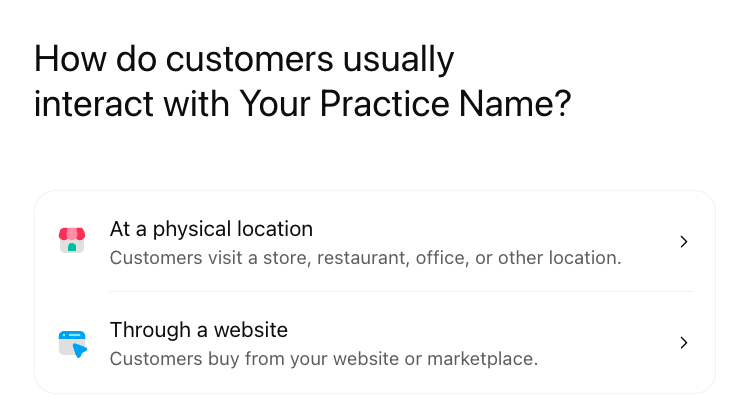
If you choose physical location for a new listing, you will land on a waitlist. When we tested it, ChatGPT showed "Join the waitlist" with a note that OpenAI is gradually opening access to more businesses. An in-person practice with no existing listing can join the waitlist and wait for the email. If your practice already appeared in Step 2, claim that listing instead.
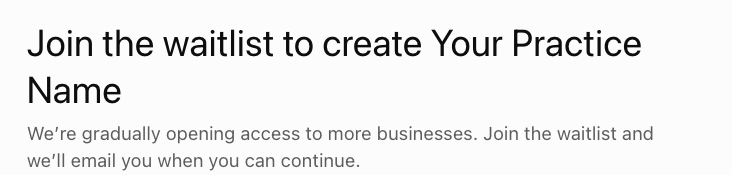
The rest of this guide follows the website path, which is the one we completed for Practice Growth Co.
Step 4: Add your website
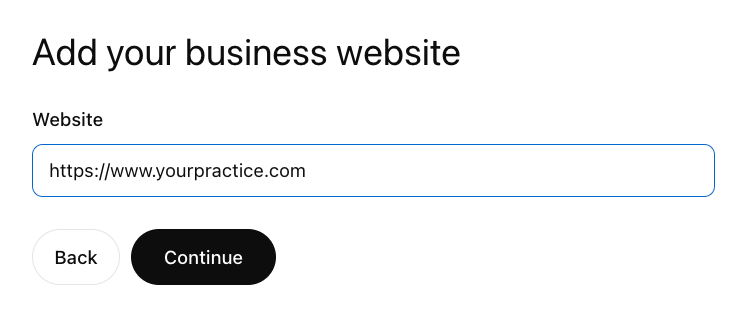
Enter your main website address and click Continue.
Step 5: Verify that you control your domain
ChatGPT asks you to add a TXT record to your domain's DNS settings. It shows three values with copy buttons: the type (TXT), the name or host, and the value, which is a code unique to you. Note the expiry time under the record; it is valid for the rest of the day.
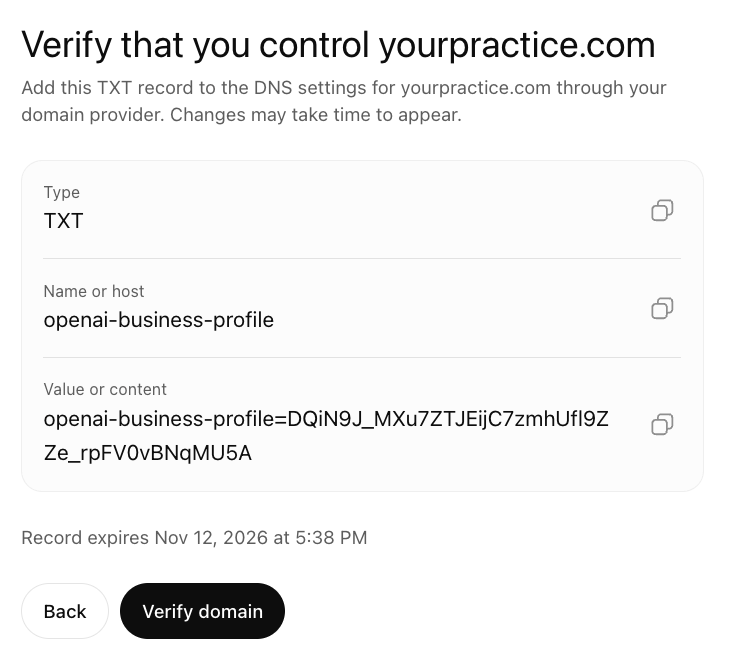
Log in wherever your domain's DNS is managed (Cloudflare, GoDaddy, Squarespace, your web host) and add a new record with exactly those values. Here is the record we added for practicegrowthco.com in Cloudflare. If your web developer or IT company manages your domain, send them the three values and ask them to add it.

Go back to ChatGPT and click Verify domain. Ours verified within a minute. If it fails, wait a few minutes for DNS to update and try again. Leave the record in place after verification.
If your listing offers phone or email verification instead, ChatGPT sends a code to the business phone or email on file. Enter it to continue.
Step 6: Pick a category and describe your practice
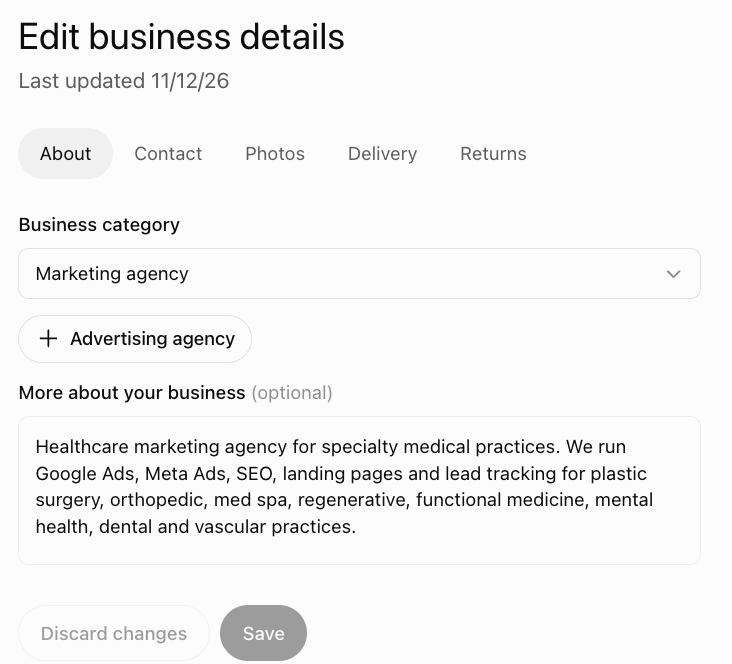
Choose the Business category that fits best. Search the dropdown rather than accepting the suggestions; ChatGPT suggested "consultant" categories for us, and "Marketing agency" was the accurate one.
Then fill in More about your business. This is what ChatGPT can share about you in conversations, and it has a 300-character limit that cuts off text without warning, so write it short and check the end. Say plainly what you treat, for whom, and where. Do not include prices or outcome claims you cannot back up.
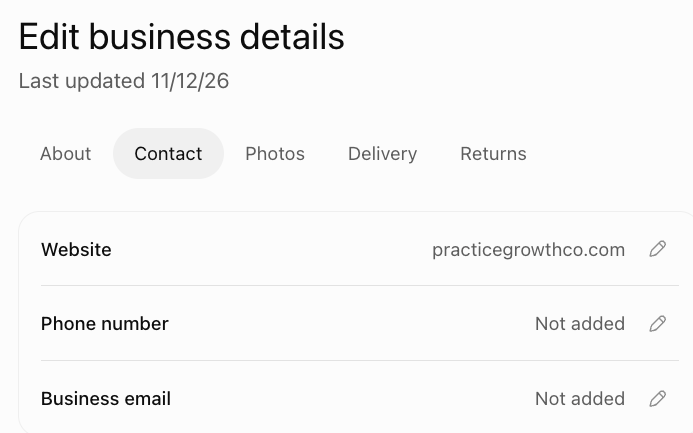
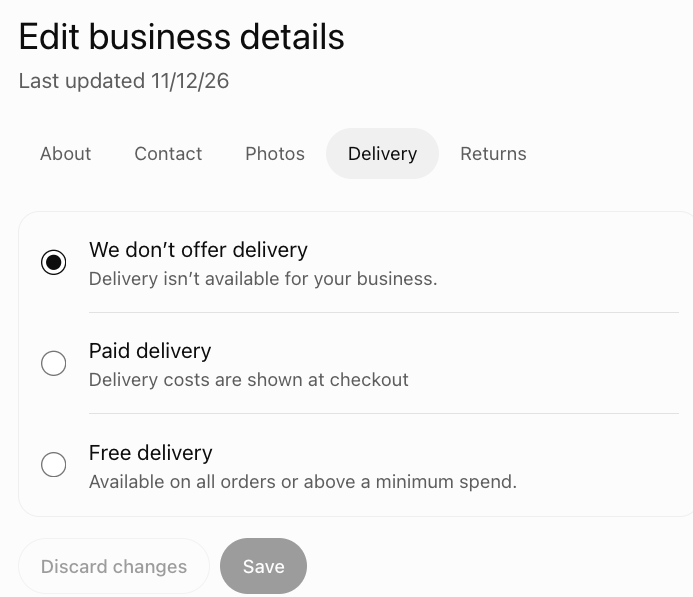
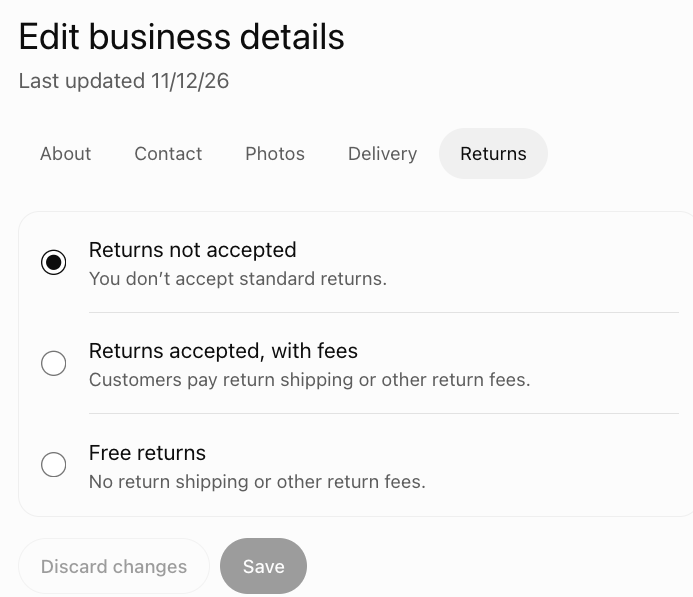
The screenshots for this step and the next three come from the Edit business details page after approval, which has the same fields as setup, one per tab.
Step 7: Add contact information
Phone and email are optional, but add the number your front desk answers. This is how a patient who finds you in ChatGPT reaches you.
Step 8: Answer the delivery and return questions
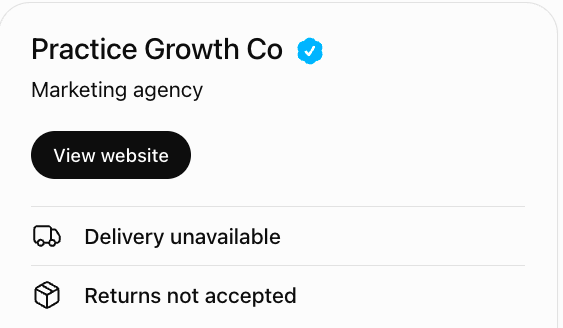
These questions are built for online stores. For a medical practice, choose We don't offer delivery and Returns not accepted, then click Submit.
Step 9: Your profile is saved as a draft
After you submit, ChatGPT confirms the profile is created and saved as a draft. It is not public yet. Click Go to business overview.
Step 10: Verify your identity with Persona
The overview shows your profile with a DRAFT label and a banner asking you to verify your identity with a government-issued ID. Until this is approved you cannot edit business info, view insights or publish an agent.
Click Verify, then Start verification. Persona, OpenAI's verification vendor, opens in a window. Read the consent, check the box, click Begin Verifying, and follow the prompts to submit your ID and any other information requested. The practice owner or authorized representative should do this step personally; an agency should not complete it on your behalf.
Step 11: Wait for approval
OpenAI reviews the submission and emails you a decision or a request for more information. Ours was approved the same day. Once approved, the DRAFT label disappears, your profile gets the blue verified check and the dashboard unlocks. If you created a new profile through Persona, OpenAI publishes it automatically on approval, so make sure the details are right before you submit.
What Happens After Your ChatGPT Business Profile Is Approved?
Insights. Business Hub reports activity over the past 28 days:
- Mentions. For a local practice, a mention counts when ChatGPT shows a result for your location, even if the patient does not click. For an online business, it counts when ChatGPT references your website; your name alone does not count.
- Website clicks. How often people click through to your site.
- Discovery topics. Common themes in answers that mentioned you. These are grouped topics, not individual patient questions. OpenAI does not share users' conversations with businesses.
Here is what the insights view looked like for Practice Growth Co right after approval, with seven days of data already filled in:
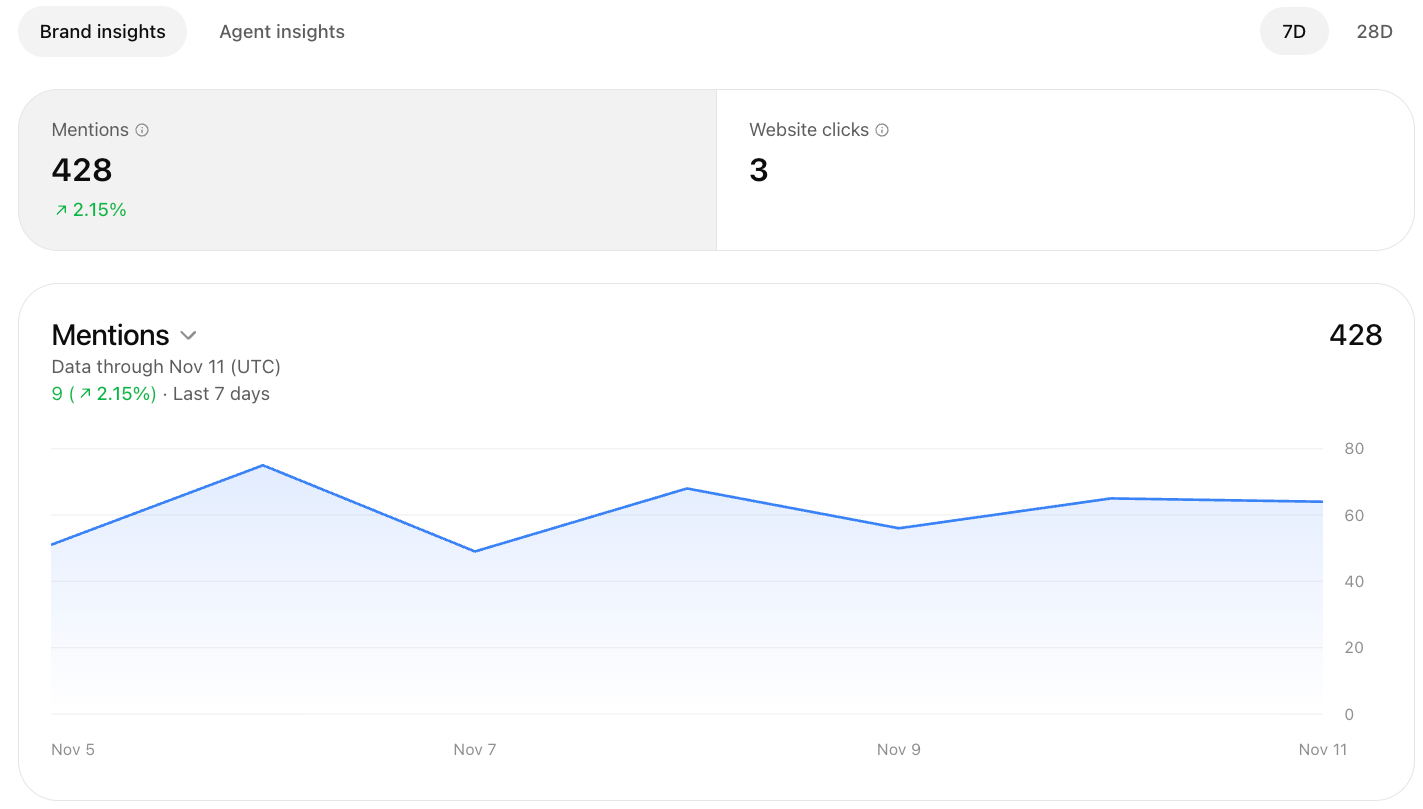
A blank number can mean activity has not reached the reporting threshold yet. It does not necessarily mean zero.
Editing your profile. After approval you can update your website, description, category, logo and cover photo. OpenAI reviews changes before they appear, and ChatGPT may still draw on other sources about you, so keep your website and Google Business Profile consistent with what you enter here.
Giving your marketing team access. The admin who claimed the business can add teammates and grant an agency access in Business Hub. Each person uses their own ChatGPT account. Do not forward your claim invitation email to someone else.
Multiple locations. Each location and each brand is managed separately. Claiming your main brand does not claim your locations.
FAQ
Does a ChatGPT business profile improve my practice's rankings in ChatGPT? Not directly. OpenAI says claiming a profile does not guarantee increased visibility and does not give you control over ChatGPT's independent recommendations. It makes sure the facts about your practice are accurate and gives you data on how often you appear.
Does it cost anything? OpenAI has not listed a price for claiming a profile or using Business Hub. You do not need to buy ads or a ChatGPT business plan to claim your practice. The setup screens do promote ChatGPT Ads and paid plans; both are optional.
Can I claim my practice if I am not the owner? Yes, if you are authorized to represent the practice. You will still need to pass the Persona identity check, and you may be asked for proof of authorization.
Someone else already claimed my practice. What do I do? Open the profile, select the more options menu (the three dots), then Dispute ownership, and verify with Persona that you are authorized to represent the business.
My listing says Contact support. What does that mean? The listing is locked. Select Contact support to request access. This is common for larger organizations and multi-location groups that go through a managed claim process.
Will patients' questions be shared with my practice? No. Businesses receive aggregate insights only, not individual prompts or conversations.
Should my practice set up a business agent? At launch, agents are available only to eligible US ecommerce and online service businesses, and they can only explain products and policies and link to your website. They cannot book appointments. Most in-person practices will not have the option yet.
If you would like Practice Growth Co to set up and monitor your ChatGPT business profile alongside your Google Business Profile and AI search work, book a strategy call and mention it.
Sources
- OpenAI Help Center, Setting up your business on ChatGPT, OpenAI's official setup, verification, insights and FAQ documentation
- OpenAI, Businesses in ChatGPT, OpenAI's product page for claiming a business
- Practice Growth Co, setup walkthrough of Business Hub performed November 12, 2026, screenshots in this guide